Azure Virtual Desktop (AVD) is a solution from Microsoft that runs in their Azure public cloud. AVD provides users with remote access to Windows applications through a web browser interface. There are multiple AVD resources available to NCSU users, with access being determined by college and departmental affiliation. Usage of AVD is not time based, i.e. users do not select a start time and duration for how long they will use the resource. Users log in and use the resources as long as needed. Inactive users will eventually be disconnected to prevent unnecessary cost of public could services. VCL automatically scales resources in AVD based on the number of logged in users. VMs in AVD are shared among multiple users that can be logged in to the same systems concurrently. This is different from on-prem resources that typically have each VM dedicated to a single user.
AVD resources are very similar to campus computing labs where a given environment may have many applications installed requiring management by a small group of IT staff. This is different from VCL on-prem resources that typically only have a few applications installed, but can be managed by lots of IT staff to provide additional flexibility.
How do I request an application be added to AVD?
- Please use the AVD application request form to submit requests for applications to be added to AVD environments. Typically, requests for software should come from faculty and staff. Students interested in getting software added to AVD typically should bring it up with an advisor, faculty member, or IT staff.
Login Process:
- When logging in to the VCL you should select Reservations, then click the New Reservation button. Select the desired environment from the drop-down box, such as NCSU (AVD). AVD environments will typically display (AVD) at the end of their name.
(Hint: type AVD in the search box to only show those images containing the AVD name.)
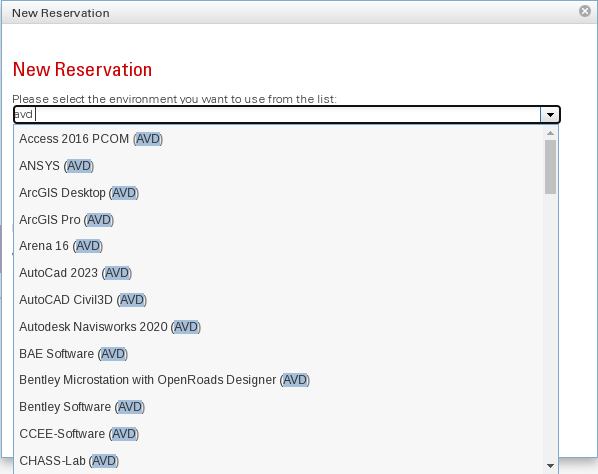
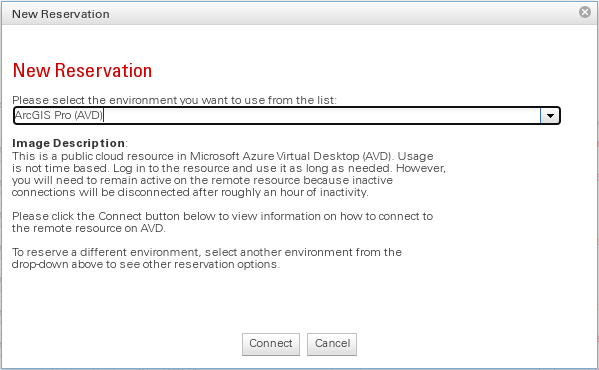
- Once the environment is selected, the information in the box will provide some information about AVD. Click Connect to view information on how to connect to the remote resource.
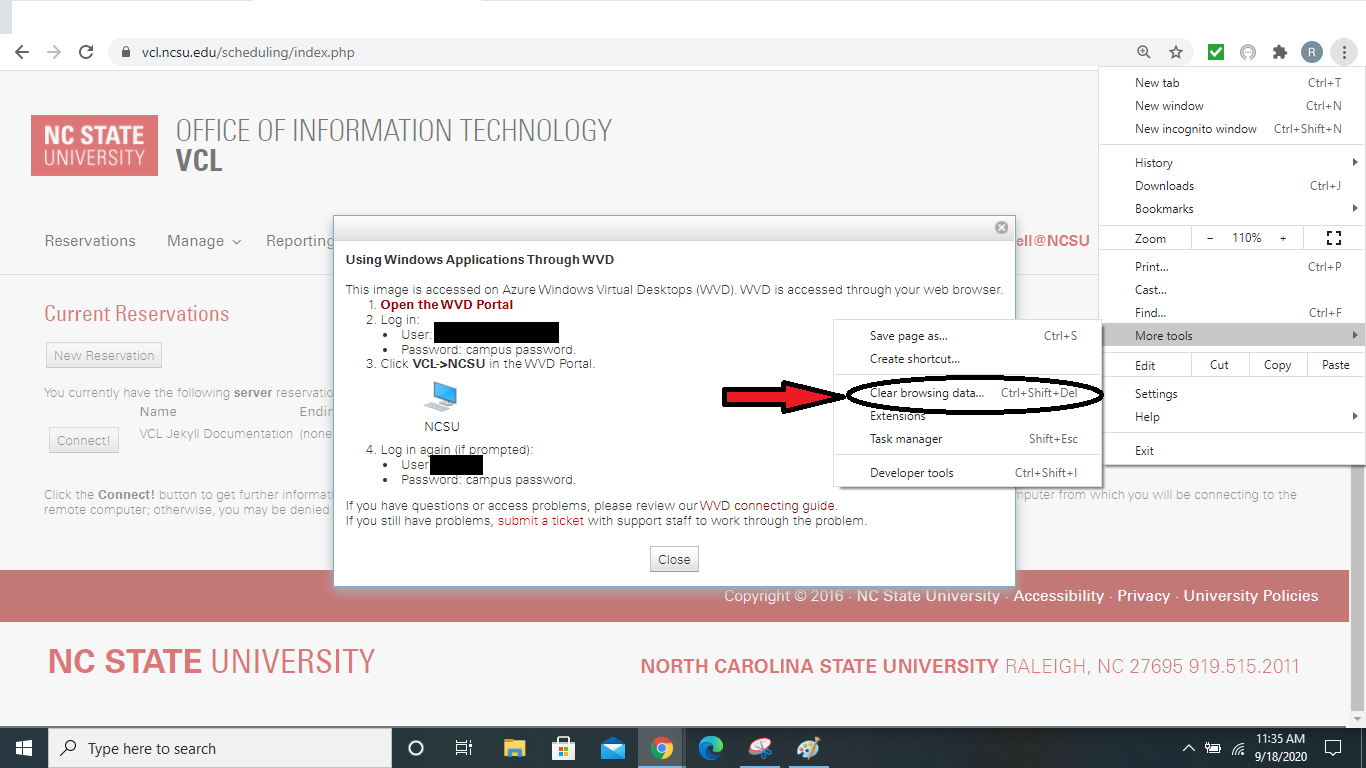
- Once the connect button is clicked another dialog box will provide instructions on how to proceed with your reservation.
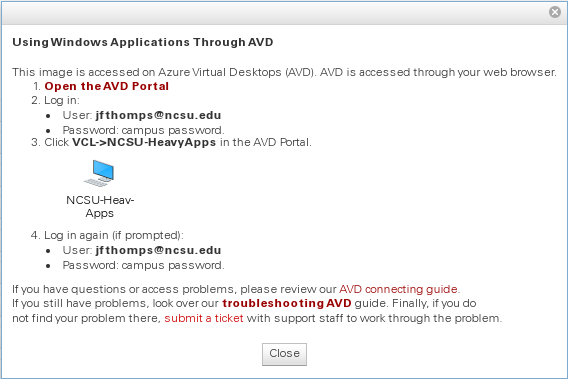
- Click on Open the AVD Portal and a new window will appear that will ask you to sign in. Logging in requires unityID@ncsu.edu (ex:jddoe@ncsu.edu). The Password will be your unity password. You may also receive a prompt for DUO verification.
NOTE: It may not prompt you for logging in if you have previously logged in. Make sure you are logged out of all other Microsoft Accounts.

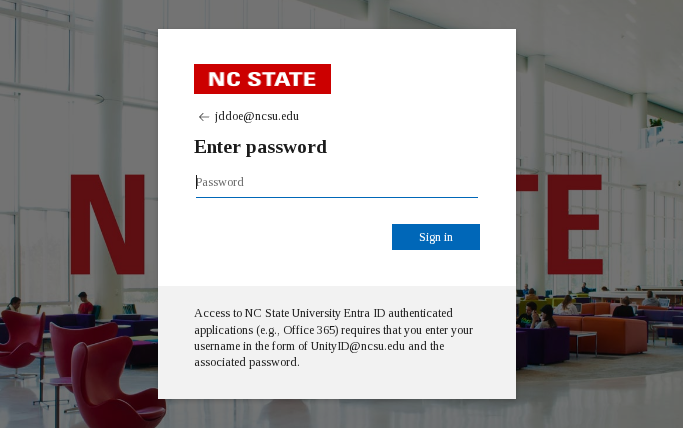
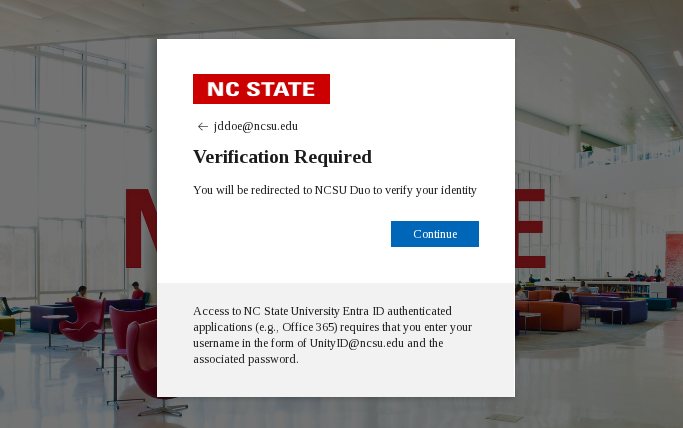
- Once sign in is successful, a new window will appear displaying all the “devices” to which you have access. Click your desired device to proceed. If you have used AVD before and aren’t seeing a new device you need to connect to, ensure you have the Devices icon at the top left of the screen selected (not Favorites), that All is selected at the top left (under the word Devices), and that the Workspaces drop down either has nothing selected, All selected, or VCL selected.

NOTE If you have used AVD through another organization previously, such as a work account, you may need to either select to Sign out of that account or to “Sign in with a different account”
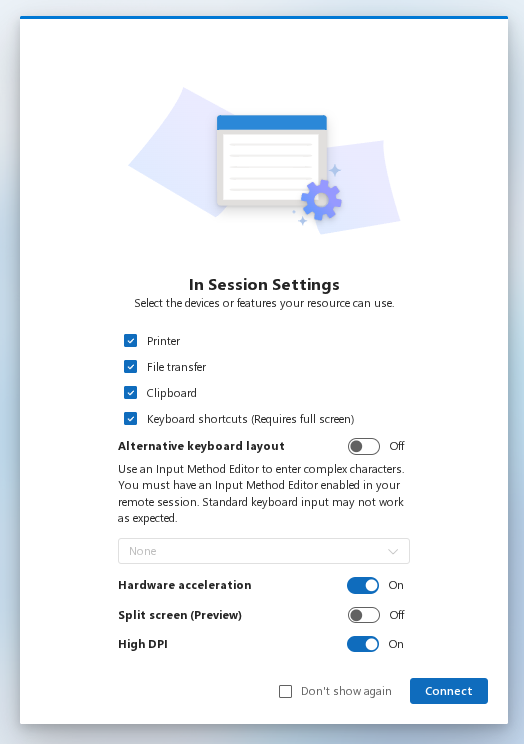
- Once the desired device is selected, a dialog box for In Session Settings may be displayed. Accepting the defaults is typically okay but you may adjust settings as desired.

- When Connect is clicked, it will start to load the resource and then display another dialog box asking for you to sign in to the device. The user name here can be just your unity ID or your unity ID followed by @ncsu.edu ex: jddoe or jddoe@ncsu.edu. (AVD prepopulates your username to include @ncsu.edu). Password is still your unity password.

- When the log in is successful, you will see a Windows desktop screen. The application you need to use may have an icon on the desktop, or you may need to open the Start menu (blue Windows icon at the bottom, a little to the left of center) and click All in the top right to see a list of installed applications.

- **NOTE** When finished, it is important to double click the “Log Off” icon on the desktop rather than just closing your browser tab to help prevent future problems when logging in and to free up resources for other users.
Troubleshooting solutions if problems are encountered:
- Use an incognito or private window if you do not see the expected resources at the AVD site
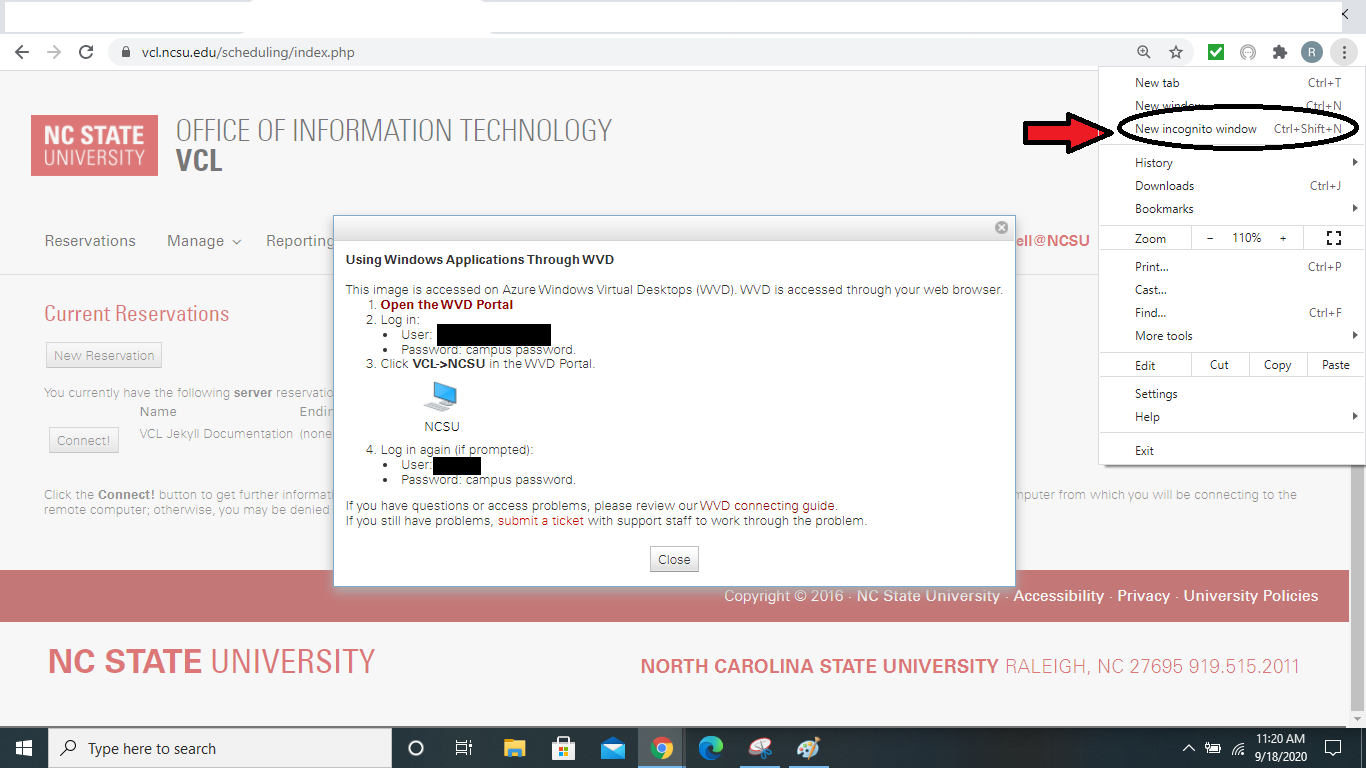
- If credential errors continue make sure to Clear Cache.
Where should files be saved on Azure Virtual Desktop (AVD)?
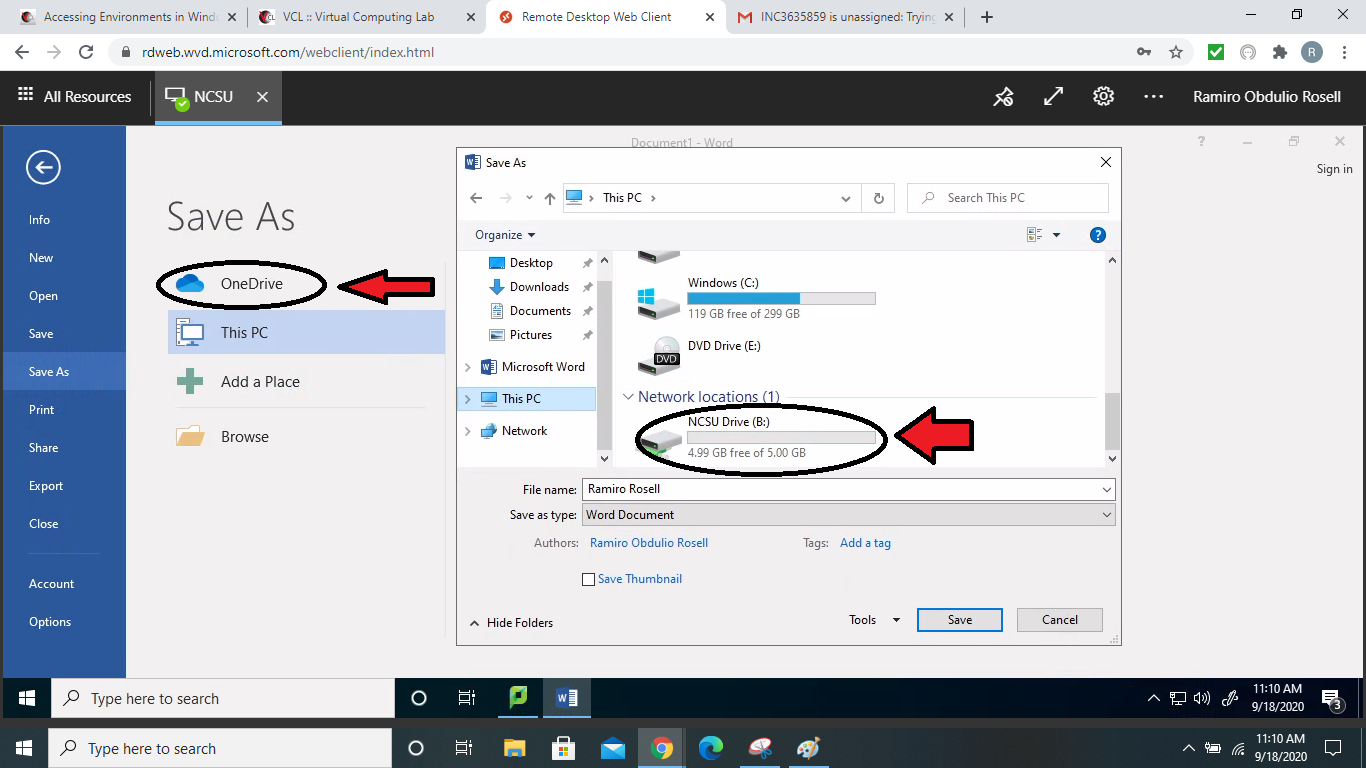
- Files on the Azure Virtual Desktop should “NOT be saved on desktop locally, Documents, or (D:) temp” because it is not guaranteed to be saved or recovered.
- Saved files should be on NCSUdrive (B:), Google Drive (G:), or OneDrive.